Filling In the Control Parameters Tab
The Composition Tracking Control Parameters tab contains the settings that control the behavior of the Composition Tracking analysis rule.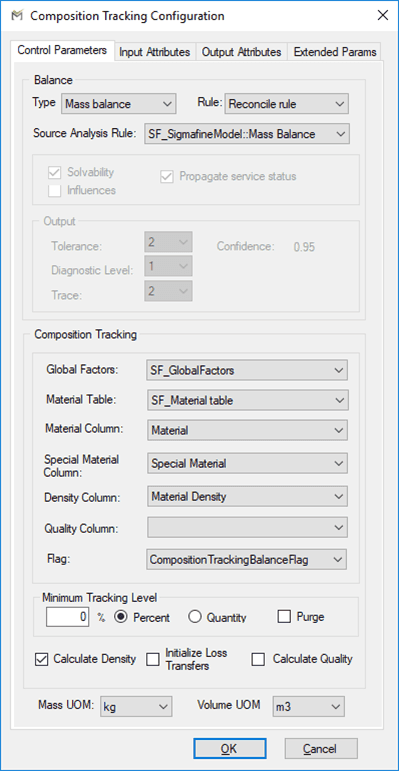
The following tables define the parameters configured on the Control Parameter tab.
Control Parameters Tab – Balance
| Parameter | Description |
|---|---|
| Type | Select Mass balance or Volume balance. This is the basis on which composition tracking will be performed. |
| Rule | Select the Rule for running the Composition Tracking. See section “Balancing Rules.”Reconciled Rule – Use the reconciled results from the source mass or volume balance analysis rule as inputs to the Composition Tracking AR corresponding cases.Balance Rule 1 – Use the measured values to perform a mass or volume balance prior to executing the Composition Tracking Analysis Rule. If a Source Analysis Rule is specified, then the measured values are collected from the corresponding Case in the Mass or Volume Balance Analysis Rule. For this rule, receipts, shipments and inventories are fixed (tolerance is set to 0).Balance Rule 2 – Use the measured values to perform a mass or volume balance prior to executing the Composition Tracking Analysis Rule. If a Source Analysis Rule is specified, then the measured values are collected from the corresponding Case in the Mass or Volume Balance Analysis Rule. For this rule, receipts and shipments are fixed (tolerance is set to 0) but inventories are allowed to vary. |
| Source Analysis Rule | Select the mass or volume analysis from which to copy the cases. Note that this analysis must already exist, and two Cases run for it. A Source Analysis Rule is required if you are using the Reconciled Rule option. If using Balance Rule 1 or 2 you can select \<none>. |
Control Parameters Tab – Options
| Parameter | Description |
|---|---|
| Solvability | Select for Sigmafine to do a solvability analysis and report the solvability for the flows, transfers, and inventories. |
| Influences | Select to calculate the impact that each flow, inventory, and transfer measurement has on the final reconciled solution. |
| Propagate Service Status | Select for Sigmafine to set balance type elements to out of service if all connected elements are also set to out of service or set all connected elements out of service if the balance type Element is out of service. |
Control Parameters Tab – Output
| Parameter | Description |
|---|---|
| Confidence | Read-only field displays the confidence calculation, which is derived from the tolerance setting. Setting the tolerance to 2 means the confidence is 0.95, if the tolerance is set to 3 then the confidence is 0.99. |
| Tolerance | Select the number of standard deviations for which tolerance of the measurement is to be defined. |
| Diagnostic Level | 0: No diagnosis analysis.1: Auto-diagnosis. The two most severe measurement errors will be noted in the log file. Trace must also be set to 1. If Trace is set to 2, then details of all severe errors are listed in the log file.2: Auto-rejection. The most severe measurement errors will be marked as out of service; reconciliation calculation is performed again with the next measurement, with severe the error placed out of service. Process is repeated until the severity of the balance points is between –1 and 1, inclusive. |
| Trace | 0: No trace analysis.1: Details of the two most severe measurement errors are noted in the log file.2: Details of all measurement errors with a severity greater than the tolerance are noted in the log file. |
Control Parameters Tab – Composition Tracking
| Parameter | Description |
|---|---|
| Global Factors | Select the name of the Element containing the global factors. |
| Material Table | Select the name of the table of materials. |
| Material Column | Select the name of the column in the Material Table that contains the names of the materials. |
| Special Material Column | Select the name of the column in the Material Table that contains the names of the special materials. |
| Density Column | Select the name of the column in the Material Table that contains the densities of the materials. |
| Quality Column | Select the name of the column in the Material Table that contains the quality properties of the materials. |
| Minimum Tracking Level | Enter as either as a percent or an absolute value. Used in flushing out materials that fall below this minimum level |
| Purge | Select to have a material eliminated from the results when its calculated values fall below the minimum tracking level. |
| Calculate Density | Check this checkbox to allow composition tracking to calculate density in inventory based on the mixture of materials. |
| Calculate Quality | Check this checkbox to allow composition tracking to calculate the selected quality in inventory based on the mixture of materials. |
| Flag | Element Attribute used to enable the participation of an Element in the Composition Tracking analysis. This Attribute exists on all Sigmafine node templates (inventories, processes and nodes). |
Control Tab – Unit of Measure
| Parameter | Description |
|---|---|
| Mass / Volume UOM | Select the mass / volume input unit to the analysis rule. This is also the unit used in reporting to the log file. |